
Price range: $860.00 through $6,000.00
RockWorks is a comprehensive software program for creating 2D and 3D maps, logs and cross sections, geological models, volume reports, and general geology diagrams for the environmental, geotechnical, mining, and petroleum industries.
Description
RockWorks is the standard in the environmental, geotechnical, petroleum, and mining industries for surface and subsurface data visualization, with popular tools such as maps, logs, cross sections, fence diagrams, solid models and volume calculations.
RockWorks offers numerous options for analyzing your surface and subsurface data, and accepts many different data types, such as stratigraphy, lithology, downhole geochemistry / geophysics / geotechnical measurements, color intervals, fractures, and aquifer data.
We can help with migrating your data from gINT© software.


Display RockWorks graphic output in its built-in 2D and 3D viewing/editing windows, or export to CAD, Google Earth, and other GIS programs. Use the ReportWorks module to create page layouts for reports and posters.
Online casinos in Kenya are rapidly gaining popularity due to the perfect blend of entertainment and the prospect of winning substantial prizes. As digital transformation continues to permeate various sectors, the Kenyan gambling industry is not left out. The proliferation of online casinos in Kenya can be attributed to the widespread availability of internet connectivity and advanced mobile technology, making it more accessible to a wider audience.
A major catalyst for this trend is M-Pesa, Kenya’s premier mobile money platform. M-Pesa has revolutionized how players transact with online casinos. With its intuitive and secure platform, players can effortlessly deposit funds, participate in games, and withdraw winnings. This seamless integration of M-Pesa with online casinos has facilitated a secure and efficient gaming environment for Kenyan users.
The quality of an online casino in Kenya is heavily dependent on the software behind it. Reputable casinos use advanced software from top developers, ensuring their games are fair, interactive, and visually captivating. From slots and poker to live dealer games, this sophisticated software delivers a thrilling and immersive experience.
Moreover, the regulations set by the Betting Control and Licensing Board of Kenya ensure that players engage in a safe, regulated environment, further boosting the appeal of online casinos in Kenya. The amalgamation of these elements – accessibility, M-Pesa, state-of-the-art software, and regulatory safeguards – is reshaping the Kenyan gambling industry.
RockWorks is offered in two different license types (perpetual & annual) with three feature levels so you can buy just the program tools you need:
- Basic: All Utilities programs, plus Borehole Manager maps, logs, log sections. 5 items per playlist, 3 faults.
- Standard: All Basic level tools, plus Borehole Manager modeling: lithology, stratigraphy, geophysical/geochemical/geotechnical, aquifers, colors, fractures. 5 items per playlist, 3 faults.
- Advanced: All Standard level tools, plus SQL-server database support, program automation (scripting), Borehole Manager petroleum production diagrams. Unlimited items per playlist, unlimited faults.
See the Feature Levels page for more information.
See also the descriptions about the RockWorks Utilities and Borehole Manager.


RockWorks Feature Levels
RockWorks is offered with three different feature levels: Basic, Standard, and Advanced. Which is right for you?

RockWorks in Industry
The flexibility of RockWorks has made it a popular software program for generating maps, models, cross sections, and diagrams in numerous earth science industries.
RockWorks Maps
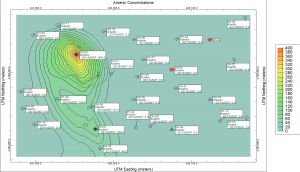
Use RockWorks to represent your data with dozens of different map types: Points, contours, range-township-section boundaries, images, geology, and many specialty maps.

RockWorks Logs, Log Cross Sections, and Log Maps
Create individual logs or multi-log cross sections and maps in 2D and 3D. Arrange log columns using the interactive design windows. Display both vertical and deviated/inclined wells.

RockWorks Cross Sections
Create single- and multi-panel 2D cross sections through surface-based and block models of interpolated data: lithology, stratigraphy, geochemical/geophysical data, fractures, aquifers, colors, and vectors.
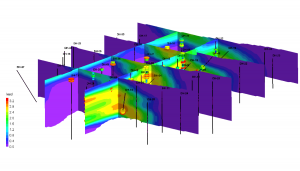
RockWorks Fence Diagrams
Create three-dimensional slices through surface-based and block models of interpolated data: lithology, stratigraphy, geochemical/geophysical data, fractures, aquifers, colors, and vectors. Include logs, coordinate labels, titles.
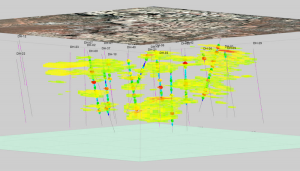
RockWorks Solid Models
Use RockWorks to interpolate continuous 3D "solid models" or "block models" of simple XYZG points or sub-surface borehole data, for display in 3D or sliced as cross sections.

RockWorks Volumetrics
Create detailed reports and models, as well as interactive views of volume computations of ore / soil or rock materials / contaminants.

RockWorks Borehole Data Types
Display and model different types of downhole data: lithology, stratigraphy, aquifers, quantitative measurements, fractures, colors, and more.

RockWorks EarthApps & Google Earth Exports
Create Google Earth output from source data - point maps, flyovers, contours. Export to Google Earth from RockPlot2D and 3D - maps, models, cross sections.
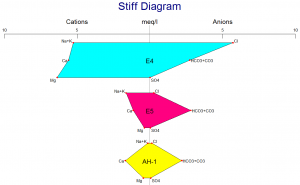
RockWorks Hydrochemistry, Hydrology Diagrams
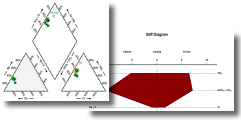
Create Piper, Stiff, Durov and other hydrochemistry diagrams, calculate water level drawdown and generate hydrographs.
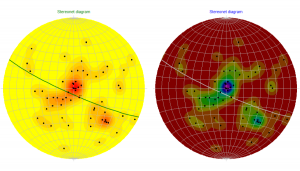
RockWorks Structural Geology Tools
Use RockWorks to generate rose diagrams and stereonets - individual and in map displays - as well as strike and dip maps, lineation maps, and more.
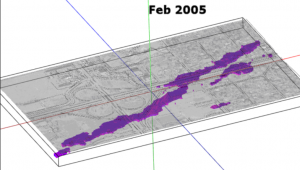
RockWorks Import/Export Features
RockWorks offers many import and export options for data, graphics, grid models and solid models to provide connectivity to other software programs.
Please complete this short form before your download. We will send you a courtesy email should you need to contact us with download or installation questions.
RockWorks should install, license, and run properly in Windows 10, and Windows 11. It is available as a 64-bit version. The 64-bit version supports larger models and faster processing, and requires a 64-bit version of Windows.
Minimum requirements for RockWorks:
NOTE: You’ll have better results with more RAM, a faster processor, and enhanced VRAM (video graphics card with dedicated RAM) for modeling and 3D display.
- Windows 10 or Windows 11
- 64-bit Operating System
- RAM: 8 GB minimum (at least 16 GB recommended)
- Plenty of free disk space on user’s C drive (An SSD drive with 2GB free space plus additional space for project data is recommended)
- Read/write privileges to a %Userprofile %My Documents directory
- Display Resolution set to 1920 x 1080 pixels (Scale set to 100%). This is for optimal program display, though other resolutions and percents are also supported.
- The Earth programs and Google Earth exports require installation of Google™ Earth, which is available online from Google.
- Excel should be installed if the user wishes to import XLSX files into the RockWorks database.
- The RockWare Network License Administrator – for network licenses – runs under Windows Server 2016 (or newer) or Windows 10 (or newer).
- Advanced level licenses support SQL Server databases. SQL Server connectivity requires a supported Microsoft SQL Server ODBC driver.
RockWorks cannot reliably use a live, multi-user database file (e.g., SQL) when that file is being synchronized by a cloud-sync service.
Details are available on THIS document.
RockWorks can read and write files that reside in folders synchronized by SharePoint, OneDrive, Dropbox, Teams, AWS Drive clients, etc. *See caution note below in the next topic.*
If you are using a folder to save your project files that is sync’d to a cloud-based storage service (OneDrive, Google Drive or DropBox) the syncing process causes problems for RockWorks by locking files and preventing RockWorks from accessing them.
To resolve the problem, turn off syncing to the storage service while working or move the project data to a local folder that is not synced.
RockWorks is offered with the following license types:
- A Single license can be installed onto a single computer. It is activated with a code specific to that computer, issued by RockWare. The license can be transferred to a new computer or different user by following the transfer instructions listed below on this FAQ page. This license can be upgraded to a different license type or feature level by paying the difference in price.
- An Annual license can be installed onto a single computer. It is activated with a code specific to that computer, issued by RockWare and valid for 1 year. When the year is completed, the software reverts to “free” mode. The license can be renewed by paying the Annual fee again at the current pricing. The license can be transferred to a new computer or different user by following the transfer instructions listed below on this FAQ page. This license cannot be upgraded to a different license type or feature level within the license year.
- A Network license is a shared license type. Any potential user may install RockWorks on their local computer. A separate License Manager program is installed on a server or other network computer and activated for X number of concurrent users. When a person launches RockWorks on their local machine, it looks to the License Manager to see if a seat is available and, if so, it will start. The License Manager can be configured to permit users to borrow a license when not connected to the network (e.g. in the field) for up to 60 days. Multiple seats must be at the same feature level. Additional seats can be added by paying the difference in price.
- A Classroom license is offered to academic institutions at a highly discounted price and is a bundled license, comprised of a Single license (typically for the instructor) and a Network license (for the lab).
RockWorks is available with three feature levels so that you can purchase just the tools you need. Please visit our Feature Levels page for more information.
All three levels include the RockWorks Datasheet and all of its tools for mapping XYZ data, modeling XYZG points, creating stereonets and rose diagrams, creating Piper and Stiff diagrams, creating animations, and much MUCH more. This is the general RockWorks “toolbox.”
All three levels offer access to the new RockWorks Playlist for program automation. Just click a button in any program window to add it, and its current settings, to the playlist, Build as many playlists as you want. Basic and Standard licenses can have up to 5 items in each playlist; Advanced licenses can have unlimited items.
All three levels can define 3D faults to apply to surface and solid modeling. Basic and Standard licenses can have up to 3 faults per project; Advanced licenses can have unlimited faults.
All three levels also include the Borehole Manager and its local database for storing and managing borehole-based data.
- With Basic, the borehole processing tools are limited to borehole location maps, 2D and 3D strip logs, and striplog profiles and cross sections. Simple correlation panels are offered for Stratigraphy, I-Data, and P-Data in 2D section diagrams, but otherwise the borehole visualization is limited to observed data – no modeling.
- With Standard, you get all of the modeling tools for the subsurface data offered in the Lithology, Stratigraphy, I-Data, T-Data, P-Data, Fractures, Aquifers, and Vectors menus, and all of the 2D and 3D diagrams and maps these menus contain.
- With Advanced, you can connect to a SQL-Server database on a network, run command scripts to for advanced program automation. You also have access to the tools in the well Production menu, and can import commercial PLSS land grids,
The higher levels include all of the features of the lower ones. You can upgrade to a higher feature level by paying the difference in price.
See also: Feature Levels
- Go to the main RockWorks product page.
- Click the Free Trial tab.
- Enter your name and email.
- Click the Captcha check-box, and click Continue. The Free Trial tab will now display instructions and a Download link.
- Click the Download link.
- Save the installer to your computer.
- When the download is complete, run the installer.
You can watch a quick video with the Free Trial download instructions.
When you purchase a license for RockWorks, you will receive an email from our fulfillment desk with the “serial number” for your license. Keep this – you’ll need it to activate your license.
RockWorks installs as a demo. You can download the installer from the main RockWorks page on our website. Save the installer file to your computer, then run it to install the software. The trial version is fully-functional for 2 weeks.
If you purchased a Single or Annual license, a machine-specific “Unlocking Code” is used to convert the time-limited demo to the full version. You can request your Unlocking Code via the RockWare Customer Portal or our Registration Form. (See the RockWorks Licensing page for details.)
If you purchased a Network license, your administrator will need to download, install, and activate the separate RockWare Network License Administrator on a server or other network computer. Contact us with questions using the form to the right. Users can install the RockWorks demo on their local computer and connect to the license manager. (See the RockWorks Licensing page for details.)
This is a 3-step process: removing the licensing from the original machine, installing the program on your new computer, and unlocking the license on the new computer. See also: RockWorks Licensing.
RockWorks Single User License Transfer
1. Remove the license from the original computer:
- Start RockWorks20 on that computer.
- Click on the License button.
- Click the Change Licensing button and then Manually Remove Licensing.
- Click Yes when prompted to confirm the operation.
- Copy or write down the Uninstall Number which is displayed.
(Note that if you uninstall RockWorks using the Windows Control Panel, the license removal will occur first, automatically.)
2. Install RockWorks onto your new computer:
- Visit the Product Updates page to download the latest installation program.
NOTE: If your maintenance has expired, you’ll need to visit the Archives Page instead, to download a revision that precedes the expiration date. - Install the software on the new computer and launch it.
- Click the Set Up Licensing button on the startup screen.
- Click in the license type you purchased and the feature level.
- Right-click/copy the Installation Number displayed there.
3. Request your new unlocking code by visiting either:
- the RockWare Customer Portal for online (immediate) generation of your code. In the Portal you can create a new account or log in using your existing account.
- Locate the license you are transferring and click the Unlock button.
- Choose Transfer to a Different Computer as the Unlock Type.
- Enter the new Installation Number, the Uninstall Number from the previous computer, the end user name and email.
- Click the Unlock Software button. The Unlocking Code should be displayed on the screen.
- Click the button to the right to copy this long code, and paste it into the Unlocking Code prompt in RockWorks.
- Enter the license’s Registration Number and your Company Name into the specified prompts.
- Click the Change button.
- the Register and Unlock Software form for email reply.
- You’ll need to supply your contact information, your license Registration Number, the new Installation Number, and the Uninstall Code from the previous computer.
- We will reply by email with the new unlocking code.
This is a 3-step process: removing the licensing from the original RockWare Network License Administrator program, installing the License Administrator on your new server, and unlocking the license on the new server. See also: RockWorks Licensing
RockWorks Network License Transfer
1. Remove the license from the original server:
Start the RockWare Network License Administrator program on that server or computer.
Click on the name of the license you wish to remove in order to select it.
Select the Licensing | Remove a License menu option.
Click OK to confirm the removal.
Write down (or right-click/copy and paste into Notepad) the Uninstall Code which is displayed – you’ll need that in a minute.
2. Install the RockWare Network License Administrator onto your new server or network computer:
Contact RockWare Support for a download link for the Network Administrator installer.
Install the software on the new server and launch it.
Select the Licensing | Generate a License Request menu option.
Set the Product to RockWorks20.
Select the Feature Level of your license (Basic, Standard, or Advanced).
Enter your license registration number and your company name into the requested prompts.
Click the Get Install Number button.
Write down (or right-click/copy and paste into Notepad) the Installation Number which is generated. You will need this momentarily.
3. Request your new unlocking code by visiting either:
- The RockWare Customer Portal for online (immediate) generation of your code. In the Portal you can create a new account or log in using your existing account.
Once you’re in the Portal, locate the license you are transferring and click the Unlock button.
Choose Transfer to a Different Computer as the Unlock Type.
Enter the new Installation Number, the Uninstall Number from the previous server, the end user name and email.
Click the Unlock Software button.
The Unlocking Code should be displayed on the screen.
Click the button to the right to copy this long code.
Back at the RockWare Network License Administrator, paste the Unlocking Code into the Unlocking Code prompt. (If you need to get back to the Licensing window, click on the name of the Pending license in the Administator console and select Licensing | Activate License.)
When you have pasted in the Unlocking Code, click the Activate License button.
- The Register and Unlock Software form for email reply.
You’ll need to supply your contact information, your license Registration Number, the new Installation Number, and the Uninstall Code from the previous server.
We will reply by email with the new unlocking code.
Maintenance is offered for Single and Network licenses for RockWorks. New licenses and upgrades to RockWorks2022 include one year of maintenance. Maintenance includes the support options listed on our support page, as well as 30 minutes of phone support, software updates and bug fixes, and new version upgrades.
After the expiration of the 12 month period, maintenance can be renewed for a fee. If you choose not to renew, you are still eligible to use the software, however:
- You will not be able to use a revision that is newer than your maintenance expiration date – no new features or bug fixes. (If you want an idea of how many enhancements we’ve made to the program, check out the number of items in the RockWorks revision history.)
- Upgrades to new versions are only offered under this maintenance plan and cannot be purchased separately. If maintenance has lapsed you need to pay the lapsed maintenance plus the maintenance renewal to get back on the plan.
For more details please refer to our Maintenance Policy.
LogPlot’s sole purpose is creating logs: it generates individual well/boring logs with almost unlimited flexibility in log layout, with detailed headers, footers, and any combination of data columns. You can create the graphic log at any vertical scale and print to single-sheet or continuous printers. If you need detailed individual logs, LogPlot is the way to go.
RockWorks creates more simplified logs, designed for display in cross sections and fence diagrams, and as a launching point for project-wide data modeling and display. Logs are just a small part of what RockWorks does.
RockWorks and LogPlot can share data, so they work nicely together. They are purchased separately.
Yes. You can create several types of cross section diagrams in RockWorks:
- 2D single-panel projected profiles (true orientation of the holes maintained),
- 2D hole-to-hole cross sections,
- 2D projected sections, and
- 3D fence diagrams.
These sections can illustrate logs only or include interpolated panels representing stratigraphy or water level surfaces, or lithology, fractures, or quantitative measurements based on interpolated solid models.
RockWorks stores borehole data in a SQLite database. When you create a new project folder in the program, the “SQLite” file will be created automatically for entry/import of your borehole data. This offers a number of benefits, including improved data integrity (such as defined formations and lithology types) and powerful queries (dialog-box-based as well as SQL entries).
RockWorks also lets you choose MDB (MS Access) as your local database type if you prefer; this option can be helpful for connecting to ArcGIS.
If you purchase an Advanced license for RockWorks you can connect the program to a SQL Server database on your network.
RockWorks was designed with numerous geological industries in mind: environmental, geotechnical, petroleum, and mining to name a few. It offers many generalized subsurface visualization and modeling tools, as well as some that are more industry-specific.
For example, well construction diagrams may be used primarily by environmental/geotechnical users, while raster logs and the stratigraphy picker tools might be used more by those in the oil and gas industry. Shallow environmental data lends itself to lithology modeling, while deep petroleum wells will focus on stratigraphic layers. Mining users will probably enter quantitative measurements as “I-Data,” while oil and gas users will enter geophysical measurements in the “P-Data” tabs.
Yes. Even though we have changed the default local database from MDB to SDB (SQLite), you can use your RockWorks16 projects with no problem. When you open your RockWorks16 project folder in RockWorks20, a new-project wizard will start. It will copy your RockWorks16 database to this new folder, updating it to the new database type.
All of your accessory files – RwDat datasheets, RwGrd grid models, RwMod solid models, and Rw2D, Rw3D, and RwRpt graphic and report files are fully usable in RockWorks20.
Yes. When you open your RockWorks15 project folder in RockWorks20, a new-project wizard will start. It will copy your RockWorks15 database to this new folder, updating it with all of the new coordinate definitions.
There is also a stand-alone program installed with RockWorks, called “RW 15 Conversion Tool” which can update your ATD datasheets, GRD grid models, MOD solid models, and RK6 and .RW3DXML graphics generated in RockWorks15 to their corresponding RockWorks20 formats (RwDAT, RwGRD, RwMOD, Rw2D, and Rw3D) individually or in bulk.
Yes, in a number of ways. (1) 2D Shapefiles can be imported into the RockWorks 2D plotting window, enabling you to overlay ArcGIS maps over your RockWorks contours, for example. (2) The RockWorks 3D display window exports log cylinders, surfaces, isosurfaces, and fence panels as 3D shapefiles for display in ArcScene (requires the 3D Analyst extension).
Click on a link below to view the support options for RockWorks:
- RockWorks Downloads
- Product Updates
- Archived Versions
- Documentation
- Case Studies
- RockWare Videos and Knowledge Base
- RockWorks FAQ
- RockWorks Support Forum
- Technical Support Policy
- RockWorks Maintenance Policy
- Set Up Licensing
- License Agreement
- Revision List
- Online Help
If you have purchased a different product from us, please review the manual for the developer’s contact information. If you are unable to locate this information, please contact RockWare and we will connect you with the developer.
-
03790 $2,000.00 Add to cart -
03791 $4,000.00 Add to cart -
03792 $6,000.00 Add to cart -
3984
Contact RockWare for pricing for 2+ users$3,500.00 Add to cart -
3808
Contact RockWare for pricing for 2+ users$7,000.00 Add to cart -
3809
Contact RockWare for pricing for 2+ users$10,500.00 Add to cart -
3850 $860.00 Add to cart -
3851 $1,720.00 Add to cart -
3852 $2,580.00 Add to cart -
3959 $600.00 Add to cart -
3780 $1,200.00 Add to cart -
3816 $1,800.00 Add to cart -
3960
Includes 1 Single license + Network license for 10 users$700.00 Add to cart -
3783
Includes 1 Single license + Network license for 10 users$1,300.00 Add to cart -
3817
Includes 1 Single license + Network license for 10 users$1,900.00 Add to cart

The RockWorks Video Library & Knowledge Base provides useful information including; (1) animations used within product demonstrations, (2) information used within presentations, (3) information sent to RockWare clients to answer specific questions, and (4) anything else that may be useful.
Click HERE to view the Graphic Version of the interactive Knowledge Base with visual examples.

Click HERE to view a Textual Version of the interactive Knowledge Base by category.

You may also like…
-
Striplog, borehole log plottingPrice range: $495.00 through $2,625.00 Add to cart
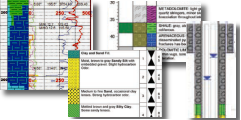
Related products
-
Contouring & variogram reference$35.00 Add to cart -
Igneous petrology softwarePrice range: $299.00 through $498.00 Add to cart -
Flow, Transport, and Heat Modeling ProgramPrice range: $3,000.00 through $4,500.00 Add to cart -
Striplog, borehole log plottingAdd to cart -
Water Chemistry DiagramsPrice range: $249.00 through $799.00 Add to cart -
Well log visualizationAdd to cart -
4640 $440.00 Add to cart -
Field data collection softwareAdd to cart