

File Import and Export Improvements
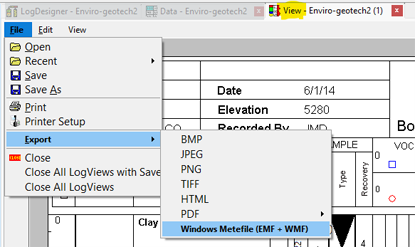
- Improved export and save options for compiled logs. Users now have the ability from a LogView tab to export to a vector file type (EMF/WMF). The user can ‘Print to a PDF’ to get a vector-based PDF.
- Updates to the Excel Multi-Sheet Import command from a workbook that contains one or more worksheets have been implemented. The importer allows the user to specify which columns of data are imported and rename them when the workbook contains rows specified for multiple boreholes.
- Updated LAS import templates to preserve edited LogPlot data field names. For example, changing the LAS curve mnemonic GR to import into the GAMMA field can now be saved in the template and reused for later LAS imports.
- Importing LAS Point-Data now allows negative starting depths which are compared by signed depth value instead of absolute value. This prevents shallow negative depths, such as -1.7 through -1.0, from being matched with positive depths and duplicated/disordered in the Point Data page.
- Added a prompt to save after LAS imports into the current editor. This way, the file remains modified and LogPlot prompts to save imported LAS data before closing the file.
- Changed the LAS import default destination to the current data editor page instead of creating a new one.
- Added an option to automatically reuse the last selected LAS import template so repeated LAS imports can apply the same mapping without reopening the template each time.
- The LAS import/export XML template options will normalize invalid LAS mnemonic characters in XML node names. LogPlot will remap the cleaned template nodes back to the LAS columns when reading.
- Reading and writing the LAS import template has also been changed from the NativeXml library to the OXml library.
- Updated and improved the PDF export (and multiple PDF export) dialog box. Clarified raster export options.
File Format Changes
- LogPlot XML library has been migrated from NativeXml to OXml. This affects the Data files (.ldat8), Data file templates (.ldat8x), Design files (.ldfx8), The LAS Template files (.xml), RockWorks “Save to Database” template files (xml), Clipboard operations in Designer, and batch compile files (.btc8)
Log Compiling Improvements
- Lithology Description/Comments drawing was updated so the bottom line is placed below the final lithology/comment interval, preventing the bottom border from crossing the last comment line of text.
Log Designer Tab
- Improved bulk editing in the Log Designer property dialogs. When editing multiple selected items of the same type, dialogs now hide fields that should remain item-specific, such as name, group, linked data source, and location/position, while keeping shared editable properties visible.
- Added same-type multi-select editing in Log Designer, allowing selected items within the same section to share applied property changes while retaining their individual names and positions.
- Stick up changes were made for Well Construction, Interval Text, and Vertical Text columns to plot items above the log start depth without extending the entire log or other column dividers upward.
- Log Designer Vertical Text with transparent setting no longer draws a line that cuts through the text.
- In the Log Designer, Pictures/Images can now be edited: Resized, Sharpened and Rotated. Edit Item from the Right-click menu or double clicking on the Picture will bring up the edit menu, then on that dialog there is a new “Edit Image” button.
Log Data Tab
- LogPlot data import from an Excel file is more flexible.
- You can add a new data page from the dialog and for multi-column pages you can add a new column.
- After importing to a page, the dialog returns to the Selection page allowing the import of additional data
Column Legends
- Add Column Legends to the LogDesigner Header or Footer.
- Link to a Column in the Log Body, or specify the XY location of the Header.
- Linked Legends will be automatically moved and resized as the column is adjusted in the Log Body.
- Enter a Title to be centered in the Legend box, oriented horizontally or vertically (ascending or descending).
- Fill the box with a color (if desired) and specify a border line style
Log Body Outlines
- Insert an outline around portions, or the complete log, in the Log Body.
- Draw base lines for Interval Text samples on compiled log when the check box to Frame Sample is enabled.
- Outline a single column, such as a Depth Bar, or the entire log.
- Choose a Fill color (if desired) and specify a Line Style.

Lithology Description Divider Line Extension
Extend the Lithology Description Divider Line so that the contact depth is more visible in logs with offset descriptions (click the image to the right to see an enlarged view).

Improved LAS File Handling
- Import LAS files that does not reference a well name.
- Add Well Information and Parameters tabs during the LAS export.

PDF Single Page Export
The new “Single Page” export option allows users to export a paginated log (with a header and footer on each page) as a single page PDF with the header and footer included at the top and bottom of the log.
